Watch it in the product
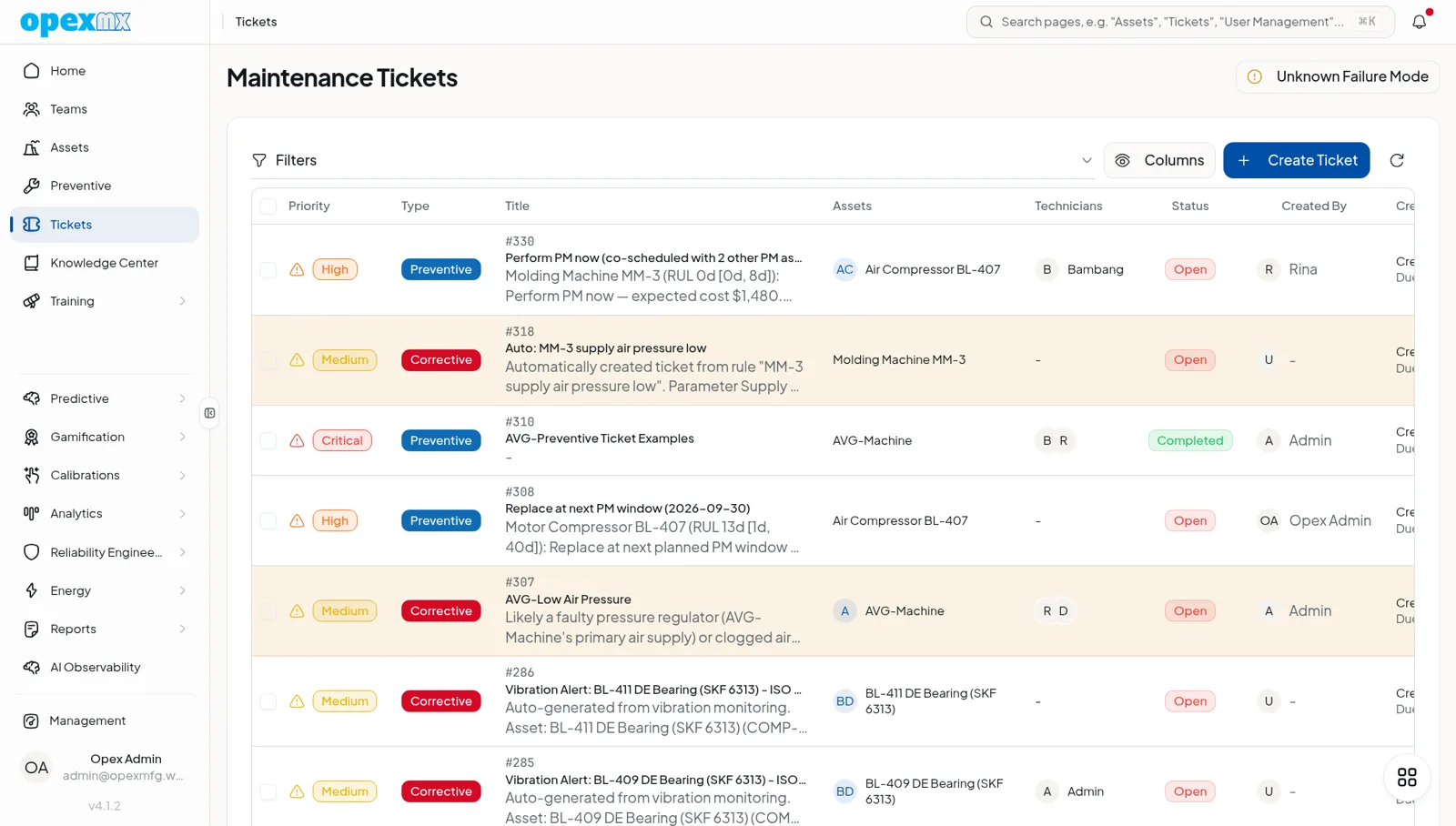
Follow one corrective job in OpexMX: the ticket list, picking a technician with Suggest, the recommended fix for a known problem, and the timeline a closed ticket keeps.
Find it: Tickets in the sidebar (Operations). Set up statuses, priorities and automatic ticket rules under Management → Work → Ticket Management. In the OpexMX Field app: the Work tab, or Scan an asset and report a problem.
Sound familiar?
- "I thought someone was fixing that."
- "I didn't know that was my job."
- "What ever happened to that ticket from last week?"
A ticket in OpexMX is the record of one maintenance job, from the report to the close. It holds the asset, the people assigned, the diagnosis, the parts and tools used, the time spent and the downtime, so the next person who opens that asset's history can see what happened and what fixed it.
Where Tickets Come From
| Source | What happens |
|---|---|
| Web app | Create Ticket on the Tickets page: title, description, type, priority, asset, technicians, scheduled date |
| OpexMX Field app | Report a problem, or scan an asset's QR code, barcode or NFC tag so the asset is filled in |
| Preventive maintenance | PM schedules generate preventive tickets on their due dates |
| Ticket rules | A parameter crosses a threshold, or an asset changes status, and a corrective ticket is opened automatically |
| Condition monitoring | Vibration and predictive-maintenance alerts can raise a ticket |
| Safety observations | A safety observation can be turned into a corrective ticket |
| Operators report a breakdown by chat to the OpexMX WhatsApp number | |
| AI assistant and MCP | The assistant or a connected agent creates a ticket with the create_ticket tool |
| ERP integration | Work orders synced in from a connected ERP |
Types and Subtypes
Every ticket has one of five types, each with its own subtypes:
| Type | Subtypes |
|---|---|
| Corrective | Breakdown, Abnormality |
| Preventive | PM, Inspection, Calibration |
| Improvement | Machine Mod, Layout Change, Automation Add-on |
| Service | Installation, Relocation, Support, Small Request |
| Calibration | Initial, Recurring, Recertification |
Type and subtype feed the analytics: MTBF and MTTR, corrective versus preventive ratio, and workflow routing rules.
Priorities and SLA
Priorities are your own list, managed under Ticket Management → Priorities. Each has a name, color, order and an SLA in hours. Seed Default Priorities creates a starting set:
| Priority | SLA |
|---|---|
| Urgent | 0.5 hours |
| Critical | 1 hour |
| High | 1.5 hours |
| Medium | 2 hours |
| Low | 3 hours |
A background job checks open and in-progress tickets against their priority's SLA. When one runs past it, the ticket gets an escalation entry in its history and the assignee is notified (or the admins and managers, if nobody is assigned yet). The status is not changed.
Statuses
Statuses are also configurable under Ticket Management → Statuses (name, code, color, order). Seed Default Statuses creates Open, In Progress, Problem Identified, Need Review, Escalated and Completed. Keep the codes open, in_progress, completed and escalated: SLA checks and workload counts rely on them.
Working a Ticket
On the web, the ticket page shows the details on one side and a timeline of comments and changes on the other. A technician typically goes through:
- Start work: the ticket moves to In Progress
- Problem identification: pick the symptom, then the known problem and the recommended action from the problem library. The step-by-step fix appears with the parts, tools, checklist and documents linked to it
- Parts and tools: check out tools, consume parts (scan a part code or batch number), and see which parts were installed on the machine
- Comments: post updates with photos or video; replies stay threaded on the timeline
- Complete job: the Finish this job sheet
The completion sheet
Before closing, the sheet shows what is still open:
- whether a cause and fix were recorded
- whether the linked checklist is finished
- tools still checked out (return them first: they cannot be returned from a completed ticket)
Then the technician adds a note ("Replaced the mechanical seal, ran 10 minutes, no leak"), the repair result (Fixed, Temporary fix or Not fixed), the downtime in minutes, and confirms the parts used are recorded.
On close, OpexMX records the outcome for analytics, turns consumed parts into installed parts on the asset, and resolves any vibration or condition-monitoring alert linked to the ticket.
Failure coding
Corrective tickets can be coded to ISO 14224: when the failure occurred, failure mode, cause, consequence, how it was detected and the disposition. This data feeds MTBF, reliability analysis and the predictive models.
Outside vendors
When part of a repair goes to an outside workshop or contractor, press Engage External Vendor on the ticket. It creates a purchase order linked to the ticket with the vendor, the scope of work, an expected completion date, the currency the vendor quotes in, and one line per cost (labour, service fee, parts the vendor supplies), plus tax and other charges. The ticket's Vendor purchase orders card shows each PO with its lines and total, and the total vendor cost when there is more than one.
The PO starts as a draft and goes through the normal purchase order steps on the card: submit, approve and issue (approve and issue need the purchase_order.approve permission), then receive when the work is done. Attach the vendor's invoice, service report, photos or receipt to the PO as deliverables. Engaging the vendor, issuing the PO and receiving it are logged on the ticket timeline with the PO number, and the engagement entry carries the amount. You need ticket.assign to engage a vendor, and a completed or closed ticket cannot take a new one. Watch the product tour.
Other actions
- Reopen: a completed ticket can be reopened; reopened tickets count against the first-time-fix rate
- Escalate: from the Field app, set the ticket to Escalated when it needs more help
- Audit trail: every change to the ticket is logged with who and when
- PDF report: print the ticket as a work record from a report template, or open it in the report viewer
Tickets in the Field App
The OpexMX Field app is built for technicians on the floor: the Work tab lists open tickets (filter to your own), start and complete, comments with photos, failure coding at close, and reporting a new problem by scanning the asset. Supervisors can mark a ticket high risk: if the technician's own readiness check-in that day came out yellow or red, the app asks before work starts (they can still start). Lists are cached for weak signal, but most actions need a connection; checklist answers are the exception and queue offline.
Notifications
Assignees get in-app and mobile push notifications when a ticket is assigned or reassigned, its status or priority changes, or someone comments. Tickets reported through WhatsApp send the assignee a WhatsApp message too. Integrations can subscribe to ticket webhooks (created, updated, assigned, status changed, closed).
Who Can Do What
| Permission | Allows |
|---|---|
ticket.read | See tickets |
ticket.create | Create tickets |
ticket.update | Update tickets and their status |
ticket.assign | Assign tickets and use technician suggestions |
ticket.resolve | Resolve and close tickets |
ticket.delete | Delete tickets |
ticket.rule.read, .create, .update, .delete | Manage ticket rules |
| Role | Default ticket permissions |
|---|---|
| Admin | All |
| Supervisor | read, create, update, assign, resolve |
| Engineer | read, create, update, resolve |
| Technician | read, create, update |
| Operator | read, create, update |
Adjust them per role in User Management.
Getting Started
- Seed priorities and statuses under Ticket Management, then rename them or change the SLA hours to match your plant
- Create a test ticket on a real asset, assign it to yourself, and work it through to Complete job
- Build the problem library for your most common breakdowns, so technicians can pick a cause instead of typing one
- Add a ticket rule for one critical parameter, such as a bearing temperature above its limit
- Install the Field app on technicians' phones and print QR labels for the critical assets
Tips
- Write titles that say what is wrong and where: "Pump P-101 mechanical seal leaking" beats "Issue on Line 3"
- Always link the asset, even for small jobs: MTBF, bad-actor lists and the asset history depend on it
- Record the cause and downtime at close. A ticket with no cause can't help at the next breakdown
- Use the Temporary fix result honestly: it marks the jobs that need a follow-up
Related
- Smart Assignment: suggestions and auto-assign by workload and qualification
- Problem Management: the symptom, problem and action library used during diagnosis
- Workflows & Approvals: step-by-step ticket flows with approvals
- Preventive Maintenance: schedules that generate tickets
- Parts Management and Tools Management: what is consumed and checked out on a ticket
- WhatsApp & Email Notifications: reporting and updates by chat
- Mobile Version: the OpexMX Field app