Smart Assignment
Find it: Management → Workload Planner → Auto-Assign (Operations group).
Sound familiar?
- "Why does Ahmad always get the hardest jobs?"
- "I didn't realize Budi was off today when I assigned that ticket."
- "We've got three technicians idle, but the urgent work is sitting on the best guy's plate."
Manual dispatch burns the wrong people out and leaves work stranded.
The Problem
When the planner picks assignments from memory, three things slip: skill (the job goes to someone who can't actually do it), shift (the ticket lands on someone who's off the clock), and capacity (your strongest technician drowns while others sit empty). The result is rework, missed SLAs, and burnout of your best people.
What OpexMX Smart Assignment Does
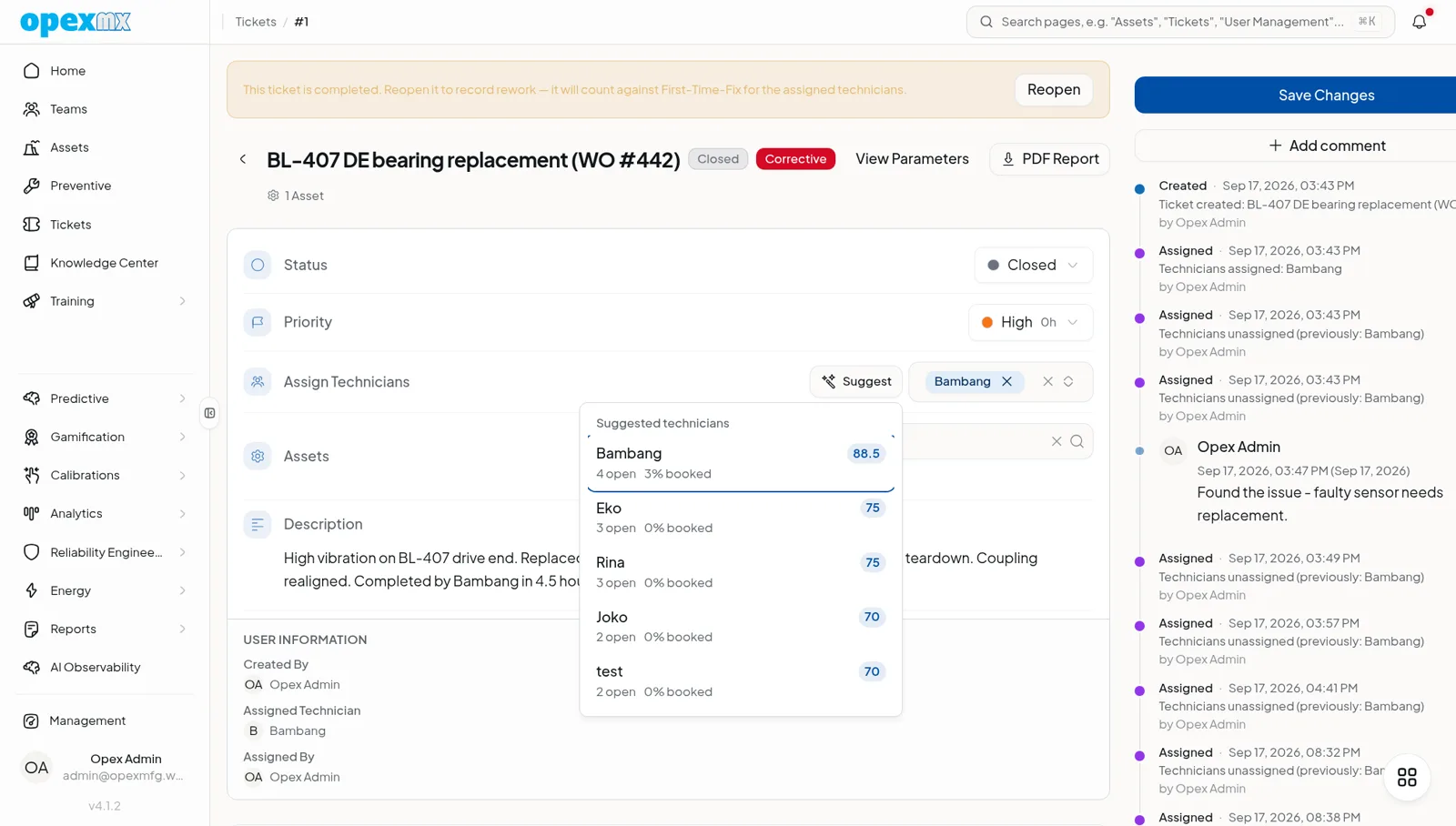
Matches every work order to the right technician automatically — by skill, shift, and capacity — and shows you why each recommendation was made. Prefer to stay in control? Drag and drop; the system still blocks mismatches before they happen.
Three Signals, One Decision
Each candidate is scored on:
- Skill — only qualified technicians are eligible
- Shift — only technicians on-shift for the planned day are considered
- Capacity — work goes to whoever has room, not whoever is famous
One-Click Auto-Assign
Select a batch of unscheduled work orders and auto-assign them. The engine distributes them across the team, balancing capacity bars as it goes.
Skill-Safe Guardrails
Drop a ticket on an unqualified or over-capacity technician and it bounces back with a clear reason. No more silent mismatches.
See the Reasoning
Every suggestion explains itself: "Recommended: qualified (Mechanical L3), on shift, 14h of 40h used." Trust comes from transparency.
Capacity-Aware Re-Assignment
When a technician goes off-shift or a new urgent job lands, the planner rebalances automatically — no manual triage.
How It Works
- Define skills — tag each technician with trade, level, and certifications
- Set shift rosters — shift status feeds in from Shift Management
- Track capacity — each technician has a daily/weekly capacity budget
- Score candidates — for each job, the engine ranks eligible technicians by skill fit, then capacity
- Auto-assign or confirm — accept suggestions in one click, or override by drag-and-drop
- Sync to mobile — the assigned technician is notified instantly
Real Example
Before OpexMX:
- Supervisor assigns tickets by habit — same three people every day
- Top technician hits 120% capacity; others idle
- Wrong-skill assignments cause rework
- Off-shift tickets sit unread
After OpexMX:
- Work distributed within capacity, no favorites
- Only qualified, on-shift technicians receive work
- Transparent recommendations build trust
- Urgent work routed to whoever can actually do it now
Who Uses This?
| Role | What They Care About |
|---|---|
| Planners | Balancing the week's work in minutes, not hours |
| Supervisors | Coverage gaps and overloads before they happen |
| Technicians | Fair load, jobs they're actually qualified for |
| Plant Managers | SLA hits and team burnout trending down |
Integrations
- Shift Management: on-shift status gates eligibility
- Personnel Training & Certifications: skill levels and expiring certs
- Ticketing System: unscheduled work orders feed the planner
- Mobile App: assignments push instantly to the technician's phone
Key Concepts
| Term | Meaning |
|---|---|
| Skill | Trade + level (e.g., Mechanical L3) plus required certifications |
| Shift eligibility | Technician must be on-shift for the planned day |
| Capacity | Hours available vs. hours already committed |
| Recommendation | A scored, explained suggestion for who should take a job |
| Guardrail | A hard block (unqualified / over-capacity) that rejects a bad drop |
Pro Tips
- Keep skills current — stale skill tags are the #1 cause of bad assignments
- Set realistic capacity — under-budgeting causes overloads; over-budgeting causes idle time
- Auto-assign in batches — let the engine balance, then review the deltas
- Read the reasons — if a suggestion looks odd, the explanation tells you why
- Watch the capacity bars — red means rebalance before burnout