Watch it in the product
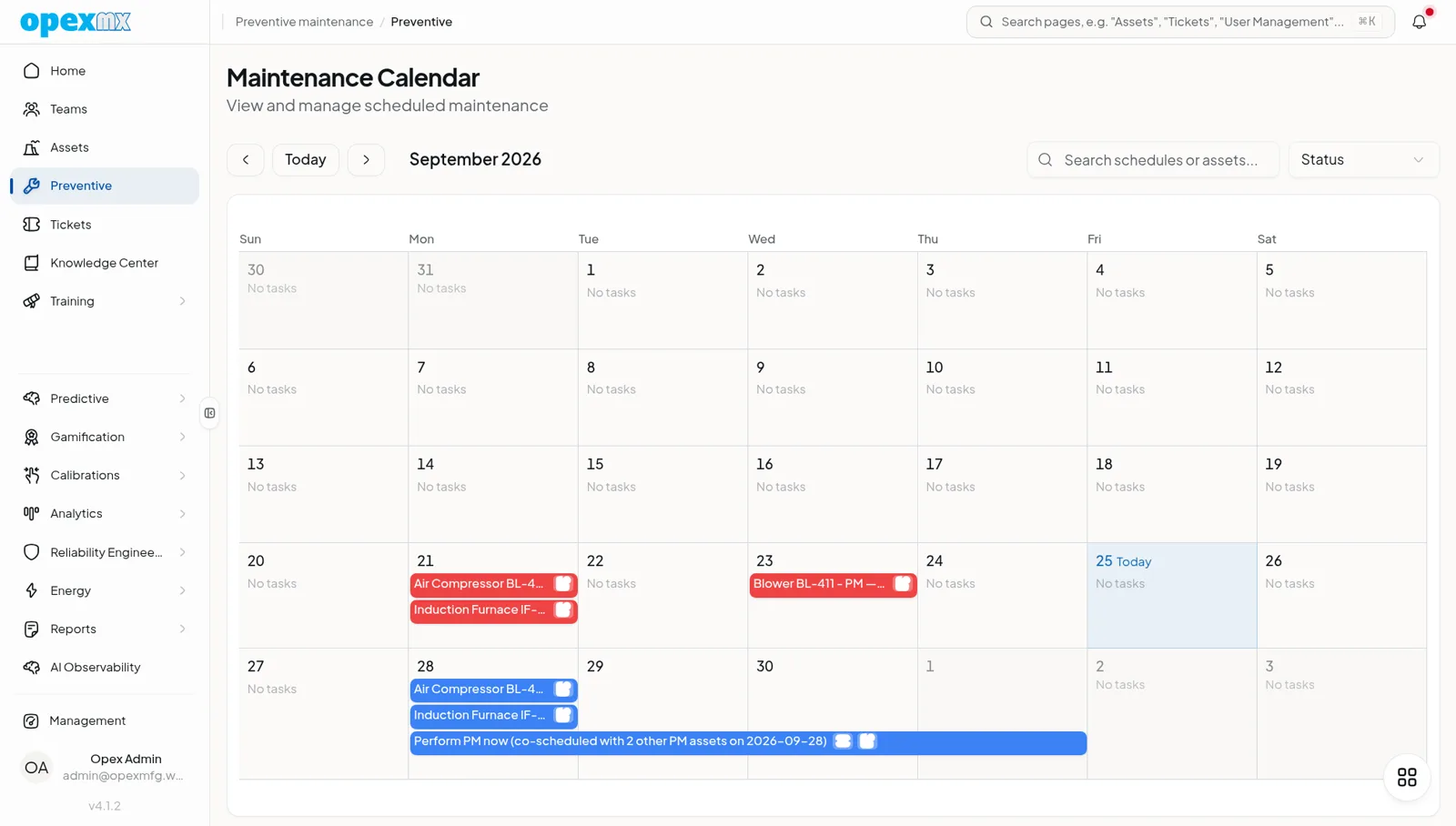
See scheduled maintenance by day on the Preventive calendar, the schedules behind it, and the checklist each scheduled job carries.
Find it: Preventive in the sidebar opens the maintenance calendar. Schedules are managed under Management → Preventive Management (Planning group), with Effort Levels beneath it. In the OpexMX Field app: Work → Planned.
Sound familiar?
- "It was working fine yesterday. Why is it broken now?"
- "When did anyone last grease that bearing?"
- "The PM plan is a spreadsheet nobody opens."
A PM schedule says what to do (a checklist), on which assets, and when. OpexMX turns each schedule into dated occurrences, creates the checklist and the work ticket for each one, puts them on a shared calendar and on the technician's phone, and flags anything that slips past its due date.
What a Schedule Contains
| Field | What it does |
|---|---|
| Name | Shown on the calendar and in ticket titles, e.g. "Boiler feed pump: monthly inspection" |
| Assets | One or more assets from the hierarchy. Pick a parent with its descendants to cover a whole line |
| Checklist Template | Required. The step-by-step procedure the technician fills in |
| Schedule type | Time-based, Usage-based or Runtime-based (below) |
| Effort level | Basic, TPM, Overhaul, Inspection or Calibration. Sets the points earned in Gamification |
| Priority | Carried onto the generated tickets |
| Start / End date | The schedule runs from the start date; the end date is optional |
| Default assignee | Who gets each occurrence unless reassigned |
| Auto-create checklist instances | Creates a checklist for every occurrence |
| Auto-create maintenance tickets | Creates a ticket linked to every occurrence, so PM work sits in the same queue as corrective work |
Schedules can be enabled and disabled without deleting them. When you delete one, you choose whether its occurrences, tickets and checklists go with it.
Three Ways to Trigger PM
| Type | Options | Example |
|---|---|---|
| Time-based | Daily, Weekly (pick the weekday), Monthly (pick the day), Yearly, every N hours/days/weeks/months/years, or one-time, at a set time of day | "Every Monday 07:00: compressor walk-down" |
| Usage-based | Triggers when the asset's outputQty reading meets a rule (>, >=, =, <=, < a threshold) | "Change the filler nozzles at ≥ 50,000 units" |
| Runtime-based | Triggers when the asset's hourMeter reading has added the threshold number of hours. Reset after maintenance restarts the count from the last completion | "Replace oil filter every 2,000 running hours" |
Time-based dates are fixed from the start date: finishing one occurrence late does not push the next one back. Usage- and runtime-based occurrences are created when a new reading for that parameter is recorded on the asset (see Integrate with Machine and Asset Management for parameters).
How Occurrences Are Generated
- For time-based schedules, OpexMX creates occurrences 90 days ahead: when the schedule is created or re-enabled, and again by a nightly job, so the calendar always shows the next quarter.
- With auto-create turned on, each occurrence gets its own checklist and its own ticket, titled with the schedule name and date (for example "Boiler feed pump: monthly inspection - Mar 03, 2026").
- An hourly job marks occurrences that pass their due date without being finished as Overdue.
Occurrence Statuses
| Status | Meaning |
|---|---|
| Pending | Scheduled, not started |
| In Progress | Someone started the checklist |
| Completed | Done; actual hours can be recorded |
| Overdue | Due date passed while still pending |
| Skipped | Deliberately skipped, or replaced by a rescheduled occurrence |
Rescheduling creates a new pending occurrence on the new date and marks the original as skipped, so the history shows what moved and when.
The Calendar
The Maintenance Calendar is a month grid of every occurrence, color-coded by status, with a search box for schedules or assets and a status filter. Click a day to open its timeline with counts of total, completed, pending and overdue tasks. From an occurrence you can assign it, start or open its checklist, complete it, skip it, reschedule it or jump to its ticket.
A PM overview, opened from the maintenance shortcut on the asset list, shows four cards: Scheduled This Week, Completion Rate, Overdue Critical (overdue work on high-criticality assets) and Avg Interval, plus the tasks due in the next 48 hours and on-time completion by area for the last 30 days.
On the Floor: OpexMX Field App
Technicians open Work → Planned to see their PM jobs grouped into Overdue, Today and Next 7 days, filtered to Mine or All. On a job they can:
- Take this job if it is unassigned
- Start and fill in the checklist, with photos and readings
- Complete, Skip (with a reason) or Reschedule
- Raise a ticket for a problem found during the round
The app needs a connection to load and update PM jobs. Checklist answers typed while offline are queued and synced when the signal returns.
Notifications
- The assignee is notified when an occurrence is assigned to them.
- When an occurrence goes overdue, a push/in-app notification goes out, and the default Maintenance Overdue email rule sends "Overdue Maintenance: machine - schedule". Edit or disable it in Notifications.
- Completed occurrences notify Admins and managers.
Where Schedules Come From
- By hand: Create Schedule under Preventive Management
- From manuals: the Knowledge Center reads uploaded manuals for intervals ("replace oil filter every 2,000 hours") and suggests schedules with a proposed checklist. Nothing is created until someone confirms. Confirmed schedules start with auto-created tickets and checklists switched off, so open each one and set its frequency, assignee and auto-create options before relying on it.
- From RCM: an RCM analysis in Reliability Engineering can create a PM schedule for a failure mode; give it a checklist and check its frequency the same way
Settings That Change PM Behavior
Under Settings → Behavior:
- Require checklist completion before a ticket can be closed: a PM ticket cannot be completed while required checkbox items on its occurrence's checklist are unticked. Off by default.
- Completing Ticket will auto Complete the Maintenance Occurrence: closing the PM ticket also completes the occurrence. Off by default.
Who Can Do What
| Permission | Allows |
|---|---|
pm.read | See the calendar, schedules and occurrences |
pm.create | Create schedules (also needed to confirm schedules suggested from manuals) |
pm.update | Edit schedules; assign, skip and reschedule any occurrence |
pm.execute | Take, start and complete occurrences that are unassigned or assigned to you |
pm.delete | Delete schedules and occurrences |
Defaults: Admins have all five. Engineers read, create and update. Supervisors read, update and execute. Technicians read and execute. Operators read. Warehouse has none. The Preventive Management menu needs pm.create. Adjust roles in User Management.
AI Agents (MCP)
Through the MCP server, agents can call get_pm_overview, search_schedules and preventive_maintenance_schedules to read PM data, and complete_pm_occurrence and reschedule_pm_occurrence to act on it, within the API key owner's permissions.
Getting Started
- Build the checklists first in Checklist Management: a schedule cannot be saved without one
- Start with your critical assets: the ones whose failure stops a line
- Create a schedule per task and interval, with auto-create tickets on so the work shows up in the ticket queue
- Set a default assignee so occurrences land on someone's Planned list
- For hour-based PM, make sure the asset has an
hourMeterparameter that receives readings - Check the calendar weekly and deal with overdue items before they pile up
Tips
- Use one schedule for many identical assets: select the parent with descendants instead of copying the schedule per machine
- Prefer runtime-based triggers for equipment whose duty varies with production; a pump that ran 60 hours this month needs less than one that ran 600
- Record actual hours on completion: it shows which PMs are under-planned
- Reschedule instead of skipping when work is only delayed, so the history stays honest
- Turn on Require checklist completion once technicians are comfortable with the checklists
Related
- Checklist & Work Instructions: the procedures behind every schedule
- Ticketing System: where generated PM tickets are worked
- Docs & Knowledge Center: PM schedules suggested from manuals
- Reliability Engineering: RCM-driven PM
- Mobile Version: the Field app
- Gamification: points per effort level