Watch it in the product
Browse part items, open the batches of a part, read the Parts Stock Analysis, and see purchase requests with their status in OpexMX.
Find it: Management → Parts Management (Inventory group), with Purchase Requests next to it. In the OpexMX Field app: the Stores tab.
Sound familiar?
- "We can't fix the machine. We're waiting on a part that should have been here yesterday."
- "The system says we have four bearings. The shelf says zero."
- "Who took the last V-belt, and for which job?"
Parts Management is the storeroom in OpexMX. Every spare part has one catalog record, its stock is tracked in batches stored at real locations, and every movement (receipt, checkout, consumption on a ticket, return, loss) is a transaction you can trace back to a person and a job.
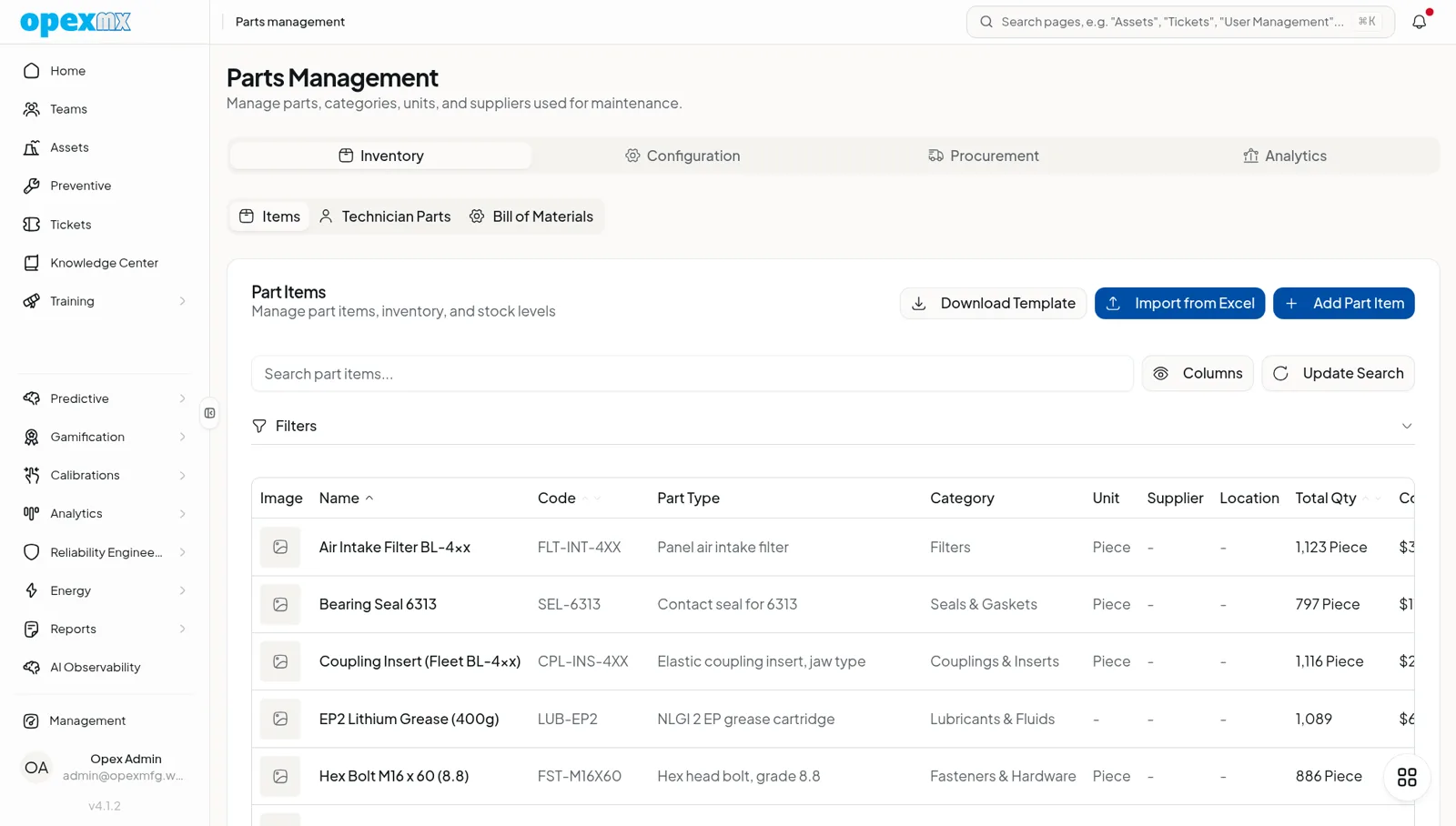
How the Page Is Organized
Parts Management has four groups of tabs:
| Group | Tabs | What you do there |
|---|---|---|
| Inventory | Items, Technician Parts, Bill of Materials | Maintain the catalog and stock, see who has parts checked out, link parts to assets |
| Procurement | Suppliers, Purchase Orders, Transfers | Keep supplier contacts, run purchase orders, move stock between locations |
| Configuration | Part Types, Categories, Units, Locations, Sites | Set up the lists the catalog uses |
| Analytics | Supplier Scorecard, Optimization | Score suppliers and classify stock (see Supplier Performance and Inventory Optimization) |
Purchase Requests has its own page in the Inventory group of the Management menu.
The Part Catalog
Each part has one record. Name and code are required; the rest is optional but worth filling in.
| Field | Why it matters |
|---|---|
| Name, Code | What technicians search for. Codes must be unique, e.g. BRG-6205-2RS |
| Part Type, Category, Unit | Grouping and the unit stock is counted in (pcs, m, L) |
| Supplier | The default supplier, prefilled on purchase requests |
| Location | The default storage location |
| Cost | Unit cost, used for stock value and purchase request estimates |
| Min / Max Stock | Drives the stock level badge, low-stock alerts and automatic purchase requests |
| Requires Calibration | For measuring parts like pressure gauges: sets a calibration interval (days) and checklist so their batches appear in Calibration Management |
| Category attributes | Specs defined per category, such as voltage or bore size |
| Image | A photo shown in the catalog table |
Categories, attributes and standard names
A category can define its own attributes (text, number or dropdown, optionally required), so every motor records power and voltage and every bearing records its bore. A category can also have a canonical name template built from those attributes, so parts entered by different people get consistent names like "Motor AC 3kW 380V" instead of five spellings of the same thing.
Part types carry a criticality (low, medium, high) and an optional preferred SKU.
Bulk import
Load an existing parts list from an Excel template: name, code, part type, category, unit, supplier, location, min stock, max stock, cost and description. The template's dropdowns are filled with your existing categories, units, suppliers and locations.
Stock: Batches, Locations and the Stock Level Badge
Stock is held in batches. A batch has a batch number, a starting quantity, an optional expiry date (for consumables such as sealant or grease) and a location. Every change to a batch is a transaction (add stock, consume stock, checkout, return, loss), so the quantity on hand is always the sum of its history.
Locations form a tree that starts at a warehouse: Warehouse → Rack → Row → Bin. Toolboxes and cabinets can also be locations and can be linked to an asset, so a line-side cabinet of spares belongs to the line it serves.
The Stock Level column on the Items tab shows:
| Badge | Meaning |
|---|---|
| Out of Stock | Nothing on hand |
| Low Stock | At or below min stock |
| Overstocked | At or above max stock |
| Available | Anything in between |
With Sites set up, stock is kept per site and Transfers move it between locations: a transfer goes draft → approved → shipped → received, and receiving it creates the batches at the destination.
Parts on the Job
- Technician checkouts: storeroom staff check a quantity out of a batch to a technician. The technician returns what is left over or reports a loss with a reason. Technician Parts lists every open checkout; technicians see their own under My Checked Out Parts.
- Consumption on tickets: in the parts section of a ticket, record the parts used. Type or scan a part code or batch number; parts already checked out to you are offered first. Parts installed on the machine are listed on the ticket with who installed them.
- Required parts: corrective actions in the problem library can list the parts a known fix needs (see Problem Management).
In the OpexMX Field app
The Stores tab has four views: My kit (parts and tools you are holding, with a return action), Stock (search parts, see low stock, open batches), Tools and Requests. Storeroom staff also get Issue parts and Receive PO. From a ticket, technicians check parts out for that job and return leftovers when they finish. Purchase requests and purchase orders waiting for you appear in Approvals.
Buying Parts
Purchase requests
A purchase request lists the parts needed, quantities, a preferred supplier per line and an expected delivery date. Requests start as pending. An approver approves them or rejects them with a reason the requester sees; the request is then marked in progress and completed as the purchase goes ahead, or cancelled. Nobody can approve their own request.
The request detail helps the approver decide: current stock against min stock, last purchase, catalog price and line totals, and an estimated arrival based on the supplier's measured lead time.
Automatic requests: when a checkout, consumption or loss takes a part to or below its min stock, OpexMX creates a pending request for the shortfall. Only one open request per part is created at a time, and the setting can be switched off under Settings → Behavior → Inventory.
Under Email Config, choose who is emailed when requests are created or updated, and whether the requester is copied.
Purchase orders
Purchase orders follow draft → submitted → approved → issued → partially received / received → closed. Receiving is done line by line, so a partial delivery stays open for the rest. Each received line becomes a new batch at the chosen location, named after the PO number, and the stock goes up immediately.
Purchase orders with line items also come from tickets, when you engage an external vendor for the work, and from ERP sync with SAP or Epicor. A draft created on the Purchase Orders tab starts as a header (supplier, expected delivery date, notes).
Low-Stock Alerts
Once every weekday, OpexMX checks all parts against their min stock and sends a summary of the low ones through the parts-low-stock notification rule. Set who receives it, and by which channel, in Email & Push Notifications.
Who Can Do What
| Permission | Allows | Default roles |
|---|---|---|
part.read | Open Parts Management and Purchase Requests, check parts out, record consumption | Admin, Engineer, Technician, Warehouse |
part.create / part.update / part.delete | Add, edit and delete parts and batches | Admin, Supervisor, Engineer, Warehouse |
part.category.* | Manage categories and their attributes | Admin, Supervisor, Warehouse (Engineer without delete) |
supplier.* | Manage suppliers | Admin, Supervisor, Warehouse |
location.* | Manage storage locations | Admin, Supervisor, Warehouse |
warehouse.checkout | Check parts out to technicians | Admin, Supervisor, Engineer, Technician, Warehouse |
part_purchase_request.write | Create and edit purchase requests | Admin, Supervisor, Engineer, Warehouse |
part_purchase_request.approve | Approve or reject purchase requests | Admin, Supervisor |
purchase_order.* | Create, approve, issue and receive purchase orders | Admin |
site.transfer | Create inventory transfers between sites | Admin |
Adjust any of these per role in User Management.
Getting Started
- Build the location tree: one warehouse per storeroom, then racks, rows and bins
- Set up categories and units, and add attributes to the categories where specs matter (motors, bearings, belts)
- Import your parts list from the Excel template
- Add opening stock as one batch per part and location
- Set min and max stock on critical parts so alerts and automatic purchase requests start working
- Show technicians the Stores tab in the Field app, so checkouts and consumption get recorded where the work happens
Tips
- Use the code printed on the bin label as the part code: scanning it on a ticket then finds the part straight away
- Set min stock on parts whose lead time is longer than you can afford to be down; leave it empty on parts you can buy the same day
- Put an expiry date on batches of grease, sealants and adhesives so old stock is easy to spot
- Ask technicians to return leftovers through the app instead of keeping them in the van: the stock count stays honest and the next person can find the part
Related
- Inventory Optimization: ABC/XYZ classes, dead stock and the usage-versus-uncertainty matrix
- Supplier Performance: on-time and lead-time scores from purchase orders
- BOM Management: which parts each asset needs
- Tools Management: borrowing and returning tools
- Ticketing System: recording parts used on a job
- Mobile Version: the OpexMX Field app