Watch it in the product
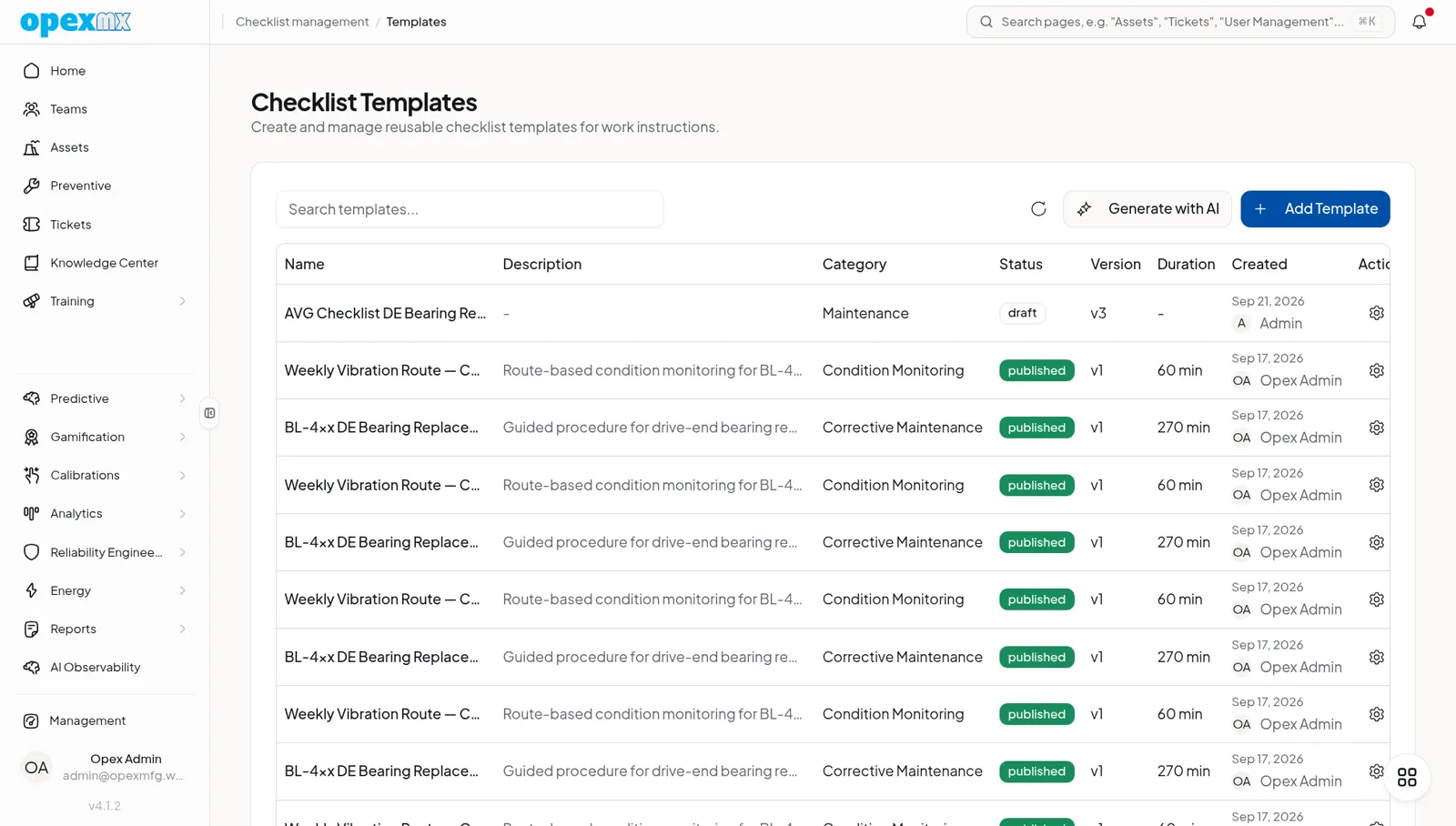
Reusable, versioned checklist templates built from sections, steps and fields, and the checklists that PM work orders carry.
Find it: Management → Checklist Management (Work group): Templates and Instances. Technicians usually open checklists from their PM job or ticket, on the web or in the OpexMX Field app.
Sound familiar?
- "Did you remember to lock out the power?"
- "Why does this task take 2 hours on day shift and 4 on night shift?"
- "The new guy doesn't know how to do this properly."
A checklist template turns a procedure into ordered steps with fields to fill in: readings, yes/no checks, photos, signatures. Each time the work is done, OpexMX creates a checklist instance from the template, so you have a record of who answered what, and when.
How a Template Is Built
Templates are organized as Sections → Steps → Fields. A section groups steps ("Isolation", "Inspection", "Restart"); each step holds one or more fields.
Field types
| Type | Use it for |
|---|---|
| Yes/No | Pass/fail checks: "Guard in place?" |
| Checkbox | Tick-off items: "Lockout applied" |
| Number | Readings, with optional Min Value / Max Value: "Bearing temperature (°C)", 0 to 80 |
| Text / Text Area | Short notes and longer observations |
| Dropdown / Radio / Multi-Select | Fixed choices, so answers stay consistent: "Belt condition: Good / Worn / Replace" |
| Date / Time / Date & Time | When something was measured or replaced |
| Image Upload / File Upload | Photo evidence of the finished job |
| Signature | Sign-off, optionally limited to one role; signing asks for the user's password |
Per step and per field
- Required: sections, steps and fields can each be marked required
- Conditional logic: show a field only when an earlier answer calls for it, e.g. "Describe the leak" only after "Leak found? = Yes"
- Knowledge Document: link a manual or SOP from the Knowledge Center; it opens next to the step while the checklist runs
- Parts and tools: a step can name the part type and quantity and the tool model it needs
Template settings
- Status: Draft, Published or Archived
- Category and estimated duration
- Requires supervisor sign-off: completed checklists go to a supervisor for review (below)
- Version: increases on every edit and publish. Each instance keeps its own copy of the template as it was when created, so editing a template never changes checklists already in progress or completed
Generate a Draft with AI
- From a description: Generate with AI on the Templates page turns a plain-language description ("monthly inspection of a belt conveyor drive, including LOTO and vibration readings") into a full template with sections, steps and fields. You then edit it in the builder like any other.
- From a manual: when the Knowledge Center suggests a PM schedule from an equipment manual, it proposes the checklist too. You edit it before confirming.
Where Checklists Run
| Started from | How |
|---|---|
| Preventive maintenance | Every PM schedule has a template; each occurrence gets its own checklist |
| Tickets | Corrective sub-actions in the Problem library can carry a template, run from the ticket |
| LOTO & permits | A permit or LOTO record in Compliance can include a checklist |
| Calibration, training, internal audits | These modules create checklists from templates too |
| Standalone | Add Instance on the Instances page: pick a template, title, assignee and optionally an asset |
Filling One In
- Progress shows as a percentage of required fields answered. Complete stays disabled until every required field has an answer.
- Instance statuses: pending, in progress, completed, cancelled. The Instances page lists them with template, assignee, and start and completion times.
- Supervisor sign-off: when the template requires it, a supervisor approves or rejects the completed checklist. The reviewer cannot be the person who completed it. A rejection needs a note and sends the checklist back to in progress.
In the OpexMX Field app
- Open checklists from a ticket's Checklists tab or by starting a PM job
- Take photos with the camera or pick them from the gallery; sign on screen
- Out-of-range numbers show a warning as you type
- Answers entered without signal are queued on the phone and sync when the connection returns; Complete waits until everything has synced (photo uploads need a connection)
- Supervisors approve checklist sign-offs from the app's approvals list
Block Closing Tickets with Unfinished Checklists
Under Settings → Behavior, turn on Require checklist completion before a ticket can be closed. A PM ticket then cannot be completed while required checkbox items on its occurrence's checklist are unticked. It is off by default.
Who Can Do What
| Permission | Allows |
|---|---|
checklist.read | See checklists |
checklist.execute / checklist.instance.update | Fill in and complete checklists |
checklist.review | Approve or reject checklists that need supervisor sign-off |
checklist.create / checklist.update / checklist.delete | Manage checklist instances |
checklist.template.read / .create / .update / .delete | Manage templates |
Defaults: Admins have everything. Supervisors, Engineers, Technicians and Operators can read and fill in checklists, and Supervisors can also review. Only Admins have the template permissions, and the Checklist Management menu needs both checklist.read and checklist.template.read, so grant those to whoever writes your procedures, for example a planner or reliability engineer, in User Management.
Example: Replace an Air Handling Unit Filter
Before: "Change the filter"
After, as a template:
| Step | Field |
|---|---|
| Isolation | Checkbox: "Unit locked out and tagged", required |
| Differential pressure before | Number "Pressure drop (Pa)", Max Value 250 |
| Remove old filter | Dropdown: "Condition: Normal / Heavily loaded / Damaged" |
| Fit new filter | Linked SOP showing airflow arrow orientation; Image Upload: new filter installed |
| Restart | Yes/No: "Unit running, no abnormal noise?" |
| Differential pressure after | Number "Pressure drop (Pa)" |
| Sign-off | Signature, Supervisor role |
Getting Started
- Pick the five procedures that go wrong most often and write those first
- Draft with Generate with AI or from a manual, then cut it down to what a technician really checks
- Link the SOP to the steps that need detail, instead of rewriting it in the step
- Publish and attach the template to a PM schedule or a problem's sub-action
- Run it once with a technician and adjust before rolling it out
Tips
- Use Number fields with Min/Max for anything you would trend later; a free-text "OK" can't be charted
- Use Dropdowns instead of Text where answers should be comparable across shifts
- Keep LOTO and other safety steps in their own required section at the top
- Turn on supervisor sign-off only where a second pair of eyes is really required, so reviews don't pile up
Related
- Preventive Maintenance: schedules that generate checklists
- Docs & Knowledge Center: procedures linked to steps
- Problem Management: checklists on corrective sub-actions
- Compliance: checklists on LOTO and permits
- Mobile Version: filling in checklists in the field