Watch it in the product
See how OpexMX tracks calibration for tools and part batches: the calibration calendar, the list of items that are due or overdue, recording a calibration, and each tool's calibration history.
Find it: Calibrations in the sidebar: Calendar, Items Needing Calibration, Calibration History, Suppliers, Supplier Certificates and Certificate Expiry. In the OpexMX Field app: open a tool to see and record its calibration.
Sound familiar?
- "This part doesn't pass QC. The gauge is reading 10% high."
- "When was this torque wrench last calibrated?"
- "We failed the audit because we couldn't find the calibration records."
OpexMX works out when every instrument is next due from its last calibration and its interval, shows what is overdue or coming up, and keeps each calibration as a record with its result, the lab that did it and the certificate.
What Gets Calibrated
There is no separate instrument register. You switch calibration on where the item already lives:
| Item | Where to switch it on | Example |
|---|---|---|
| Tools | Management → Tools Management → Tool Models: tick Calibration Required and set Calibration Interval (Days). Every tool of that model is tracked | Torque wrenches, multimeters, pressure gauges in the tool crib |
| Part batches | Management → Parts Management, on the part item: tick Requires Calibration and set the interval in days. Every batch of that part is tracked | Test weights, reference thermometers, gauge blocks kept as stock |
Status
The next due date is the last calibration date plus the interval. Every item gets one of four statuses:
| Status | Meaning |
|---|---|
| OK | Next due date is more than 7 days away |
| Due Soon | Due within 7 days |
| Overdue | Past its due date |
| Never Calibrated | No calibration recorded yet |
Recording a Calibration
Use Record Calibration on Items Needing Calibration, or Record on an item's row or calendar entry.
| Field | Notes |
|---|---|
| Calibration Date | Required |
| Next Due Date | Optional. Used for due-soon reminders (below) |
| Result | Pass or Fail |
| Type | Internal (your own technicians) or External (a lab, chosen from your suppliers) |
| Certificate | Optional file: PDF, JPEG, PNG, GIF or WebP, up to 10 MB. When you attach one, the certificate number and standard are required |
| Notes | Free text, e.g. as-found readings |
For external work, if the chosen lab's own certificate has expired or is about to, OpexMX warns you and asks before saving.
Each recorded calibration also creates a ticket of type calibration, so the work and its certificate sit in the same ticket history as other maintenance.
Views
- Calendar: a month grid of calibrations, colored by status, filtered by type (tool or part batch) and status. Open an entry to record a calibration, view the item's history or open its ticket.
- Items Needing Calibration: every tracked item with its last calibration, next due date and status. Search and filter by type and status.
- Calibration History: pick a tool or part batch to see its timeline of calibrations: date, result, next due date, technician and notes.
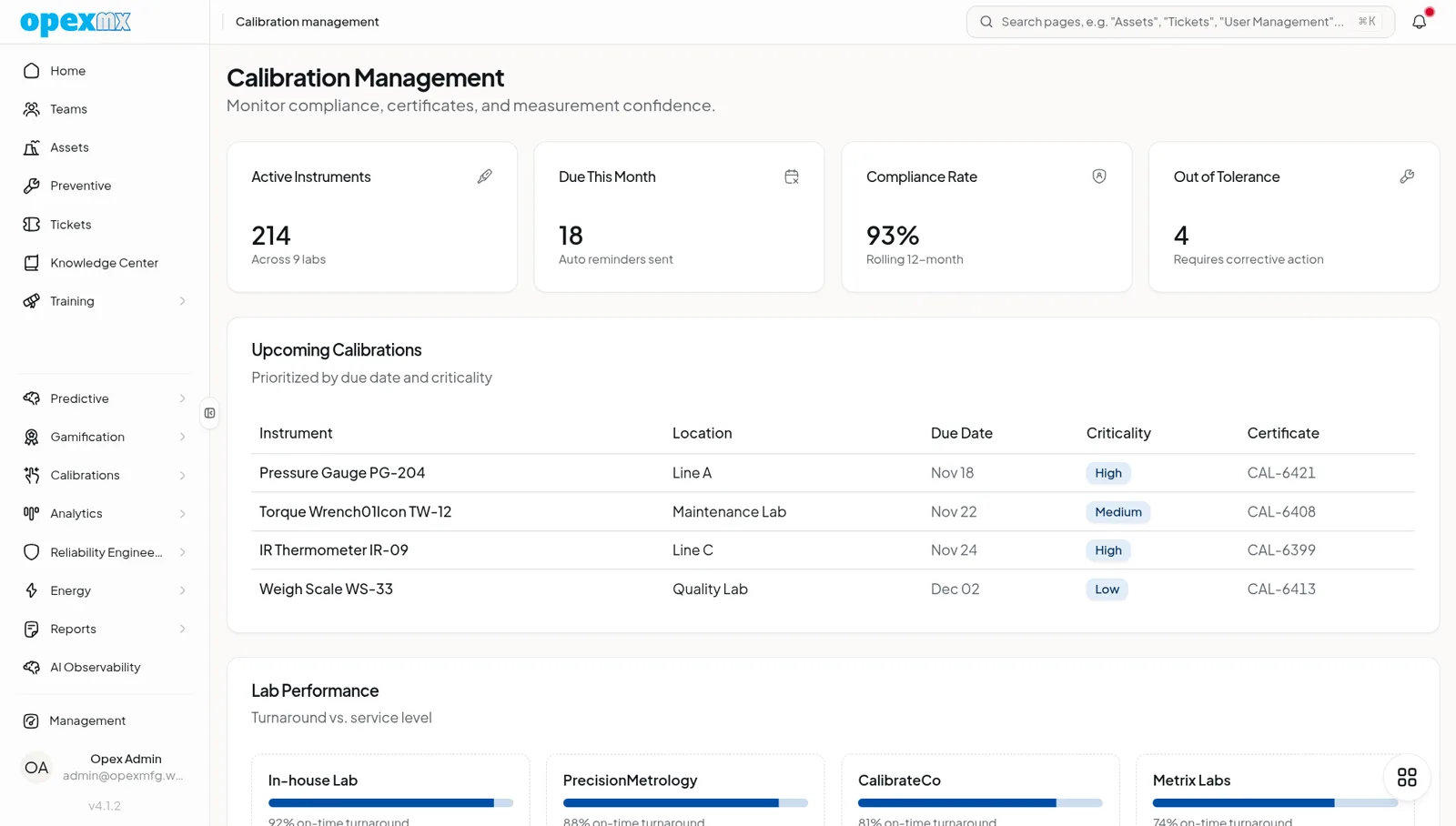
- Overview (shown above): Tracked Instruments, Due This Month, Compliance Rate (items within their interval) and Overdue, the next five calibrations due, and the labs with the best on-time rate.
Labs and Their Certificates
Suppliers ranks the labs you use, from your own calibration records:
| Column | Meaning |
|---|---|
| Total Calibrations | Calibrations recorded against the lab |
| Pass Rate | Share of results that passed |
| Avg Turnaround | Average days between the record being created and the calibration date |
| On-Time Rate | Share completed on or before the due date |
| Status | Preferred at 95% or more, Approved at 85% or more, otherwise Watch |
Supplier Certificates holds each lab's own certificates, such as its ISO/IEC 17025 accreditation: certificate number, standard, issue and expiry dates, and the file.
Certificate Expiry shows which lab certificates have expired, expire within 7 days, or within 30 days. Notifications go out 90, 30 and 7 days before a lab certificate expires, and on the day it does.
Reminders
Every weekday, OpexMX sends a "Calibration(s) Due Soon" notification for calibrations whose Next Due Date falls within the next 7 days. Fill in Next Due Date when you record a calibration so the reminder fires.
In the OpexMX Field App
Open a tool to see its calibration status and last and next dates, and record a calibration with a date and result. The home screen counts tools you have checked out that are overdue for calibration. Calibration is also one of the ticket types when reporting a problem.
Who Can Do What
| Permission | Allows |
|---|---|
calibration.read | Open the Calibrations menu |
calibration.create | Record calibrations |
calibration.update / calibration.delete | Edit and delete calibration records |
supplier.create / .update / .delete | Manage supplier certificates |
Calibration screens also require reliability.view. Defaults: Admins have everything. Supervisors, Engineers and Technicians can view and record calibrations. Operators and Warehouse staff have no calibration access; Warehouse and Supervisors can manage supplier certificates. Adjust roles in User Management.
Audits and AI
- In Compliance, the evidence vault can generate a Calibration Due Listing PDF on a monthly or quarterly schedule and file it against a framework clause.
- Agents connected through the MCP server can call
get_calibration_summaryfor overdue and upcoming counts.
Getting Started
- Mark the tool models and part items that need calibration and set their intervals
- Record the last known calibration for each item, with its certificate, so due dates start from reality
- Add your calibration labs as suppliers and upload their accreditation certificates
- Work the Items Needing Calibration list each week, starting with Overdue and Never Calibrated
Tips
- Set intervals from each item's history: shorten them for instruments that keep failing, lengthen them for ones that always pass
- Write the as-found reading in Notes when a result is Fail, so you know how far it drifted
- Keep a calibrated spare for critical measurements, so production doesn't wait for the lab
- Use the Suppliers view at contract time: turnaround and on-time rate come from your own records, not the lab's brochure
Related
- Tools Management: tool models and the tool crib
- Parts Management: part items and batches
- Compliance: evidence vault and audit trail
- Supplier Performance: broader supplier scorecards
- Ticketing System: calibration tickets