Watch it in the product
A tour of people in OpexMX: the shift calendar and rosters, a team workload view with shift status, technician qualifications, and training programs.
Find it: Training in the sidebar (Dashboard, Course Catalog, Learning Paths). Set up training under Management → Training Management (People group); award qualifications under Management → User Management → Qualifications. In the OpexMX Field app: the Learn tab, or Me → Learning when the tab bar is full.
Sound familiar?
- "Is he qualified to work on that equipment?"
- "Whose forklift license runs out this month?"
- "The new hire watched the video. Did anyone check he understood it?"
OpexMX keeps training, its results and the qualifications it leads to in one place. Technicians take courses on the web or in the Field app, pass quizzes and download a certificate; supervisors see who holds which qualification and when it expires. Ticket assignment suggestions then rank people who hold the qualifications a job requires.
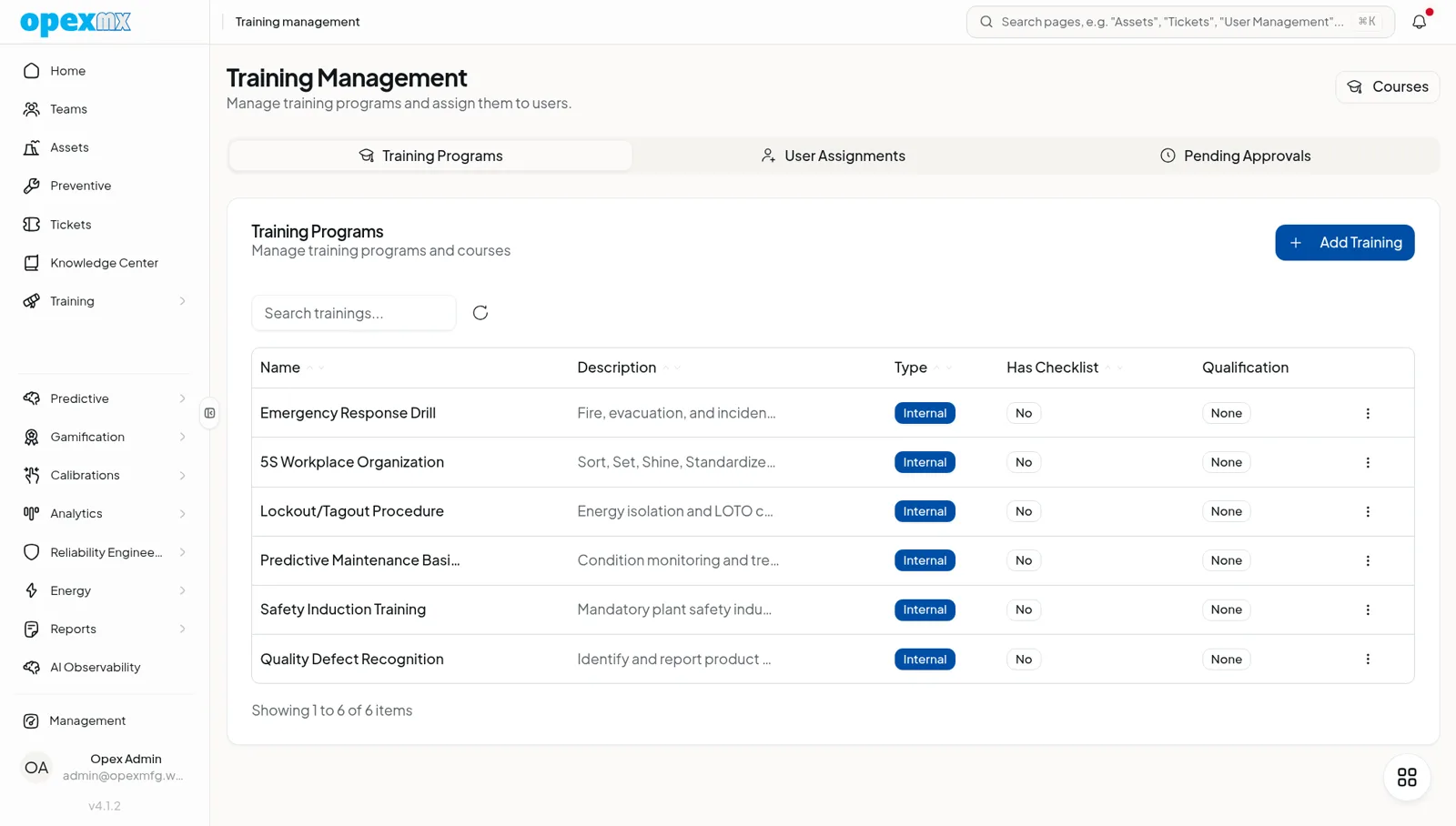
Three Kinds of Training
| Kind | How the learner completes it | Example |
|---|---|---|
| Course | Works through lessons and passes the quizzes | "Centrifugal pump basics": 4 modules, a quiz per module |
| Checklist-based | Runs a checklist; finishing the checklist completes the training | A practical sign-off for a boiler start-up procedure, ticked off on the floor |
| External | Uploads the certificate from an outside course and submits it for approval | A forklift license or a working-at-height certificate from a training center |
External certificates can be PDF, JPEG, PNG, GIF or WebP files and record who issued them and the issue and expiry dates. They wait in Pending Approvals until someone with approval rights accepts or rejects them.
Courses
Courses are built in Training Management → Courses from modules and lessons.
- Lessons are rich text with images and videos. A lesson can also link a document from the Knowledge Center, so the course points at the current SOP instead of a stale copy.
- Quizzes sit on a lesson or a module, with single-choice, multiple-choice and true/false questions. The passing score is set per course (60% by default).
- Quiz rules: optionally limit attempts, add a waiting time between attempts, or draw a random set of questions from a larger bank so two technicians don't get the same quiz.
- Completion: a course is complete when every lesson is done and every module quiz is passed. A PDF certificate of completion is issued automatically.
- Draft or published: learners only see published courses in the catalog. The player remembers where a learner stopped in a video.
| Limit | Value |
|---|---|
| Lesson video | 500 MB (compressed in the browser before upload) |
| Lesson image | 10 MB: JPEG, PNG, WebP or GIF |
| Course name | 200 characters |
Learning paths
A learning path puts courses in order, for example "New mechanical technician: safety basics → LOTO → pump basics → alignment". A course with a prerequisite stays locked until the prerequisite is complete.
Assigning Training
Under Training Management → User Assignments, assign a training to one or more users with an optional due date. Each person gets an in-app notification, and the same training can't be assigned twice to someone who still has it open. Learners can also enroll themselves in any published course from the Course Catalog.
A daily job sends a reminder when an assigned training is close to its due date.
Qualifications
A qualification is a named skill or authorization, such as "HV switching" or "Forklift operator". A person gets one in two ways:
- Automatically, when they complete a training linked to that qualification
- By hand, in User Management → Qualifications: a user-by-qualification matrix where you click a cell to award or revoke, with an optional expiry date
The learner sees their own qualifications and certificates on the Qualifications tab of the Training dashboard.
Expiry and recertification
- The holder gets an in-app warning before a qualification expires (30 days ahead by default).
- When a qualification expires, the training linked to it is assigned to the holder again, due in 30 days. Recertification can be switched off per training.
Qualifications earned by completing a training have no expiry date of their own. To make one expire, set the date when you award it by hand.
Where qualifications are used
- Problem actions can list the qualifications a corrective action requires (see Problem Management).
- Assignee suggestions on a ticket weigh qualifications alongside workload and capacity. Candidates missing a required qualification are ranked lower and marked "Missing: …".
- Teams workload view shows qualification badges per person and can sort by them.
By default the system does not block assigning a ticket to someone without the required qualification; it only ranks and marks them in the suggestions.
Personnel Certificates Outside Training
Licenses that don't come from a training in OpexMX can also be recorded under Management → Compliance → Certificates with the entity type Personnel, including the certificate number, standard, issuing body and issue and expiry dates. These records are not linked to the user list and don't send expiry reminders, so for anything you need reminders on, use an external training plus a qualification with an expiry date.
Field App
The Learn tab lists My courses, Paths and Browse. Technicians can play lessons, take quizzes and open their certificates on the phone. Anyone with training.approve can also clear pending training approvals from the Field app. Checklist-based training, external certificate upload and qualifications are handled on the web.
Who Can Do What
| Permission | Allows | Default roles |
|---|---|---|
training.read | Browse courses and learning paths | Supervisor, Engineer, Technician |
gamification.read | Enroll, record progress, take quizzes, download certificates; also view and award qualifications | Supervisor |
training.assign | Assign training to users | Supervisor |
training.approve | Approve or reject external certificates | Admin only |
training.course.author | Create and publish courses, lessons, quizzes and learning paths | Admin only |
training.course.update / training.course.delete | Edit or delete course content | Admin only |
gamification.create / update / delete | Create, edit and delete training programs | Admin only |
Admins have every permission. Taking a course needs both training.read and gamification.read: Technicians and Engineers have only the first by default, so check their roles in User Management before you roll courses out.
Getting Started
- Create qualifications for the skills and authorizations you need to track (User Management → Qualifications)
- Award existing qualifications in the matrix, with expiry dates where licenses expire
- Build one short course for a common task, link the SOP from the Knowledge Center, add a module quiz and publish it
- Create a training program that links the course or a checklist to a qualification, so completing it grants the qualification
- Assign it to the people who need it, with a due date
- Add required qualifications to the problem actions that need them, so ticket suggestions rank the right people
Tips
- Keep courses short: one task per course is easier to finish on a phone between jobs than one long course per machine
- Use a random question draw for safety quizzes that people retake every year
- Link lessons to Knowledge Center documents instead of uploading copies, so a revised SOP reaches the course without editing it
Related
- Docs & Knowledge Center: documents linked from lessons
- Checklist & Work Instructions: checklists used for practical training
- User Management: the qualifications matrix and role permissions
- Problem Management: required qualifications on corrective actions
- Smart Assignment: how assignee suggestions are ranked
- Gamification: rules that reward completed training with points and badges
- Compliance: personnel certificate records