Find it: Install OpexMX Field from mx.opexcg.com/download, or from Settings → Profile → Mobile app in the web app, which shows a download QR and a connect QR for your organization. On a phone browser, the web app opens with a bottom bar: Home, Assets, AI, Tickets, More.
Sound familiar?
- "I need to check the ticket. But the computer's in the office."
- "Can I take a photo and attach it to the work order?"
- "What's the procedure for this machine again?"
There are two ways to use OpexMX on a phone. OpexMX Field is the Android app built for work on the floor: tickets, PM, checklists, stores, scanning and alarms, with an offline cache. The web app also works in a phone browser for everything else, including the admin and analytics screens the Field app leaves out.
OpexMX Field (Android)
One app serves every organization. On first launch you connect it to yours, then sign in with your OpexMX account.
What it covers
| Tab or screen | What you do there |
|---|---|
| Home | Counts and a "needs attention" list (approvals, overdue PM, overdue tools, an unacknowledged shift handover), the running labour timer, shortcuts, upcoming planned maintenance and checklists |
| Work | Tickets (Mine, Pool, Team, Done) and planned PM. Open a ticket to change status, reassign, add comments with photos, record failure codes on completion, and log parts and tools. Labour time starts when you start work and is logged when you pause, escalate or complete |
| Stores | Your kit (return or report a loss), stock lookup, tool borrowing, purchase requests. Storekeepers issue parts, take returns and receive purchase orders |
| Scan | Scan an asset QR code, barcode or NFC tag, then open it, report a problem, log a reading, set its status or start a PM. Part and tool codes open their detail |
| Learn | Assigned courses and learning paths, lessons (rich text, video, PDF), quizzes and certificates |
| Me | Approvals, team, shift and handovers, assets, safety observations, Manuals & SOPs, points and badges, notifications, team chat, app tour and app update |
The two tabs next to Scan follow your permissions: Work when you can see tickets, PM or checklists, Stores when you can see parts, tools or warehouses, and Learn takes the free slot. A technician typically gets Work and Stores, an operator Work and Learn, a storekeeper without ticket access Stores and Learn. Screens hide actions your role can't perform, and the server checks every call again.
The app also has the AI copilot chat, and an optional, opt-in fatigue readiness check (Me → Wellbeing) that warns before a high-risk work order.
Alarms and notifications
- Ticket assignments, PM assignments, approvals, handovers and other alerts arrive as phone notifications, even when the app is closed. Tapping one opens the right screen.
- A corrective ticket assigned to you rings a siren, so a breakdown call is hard to miss on a noisy floor.
- Battery savers can stop background alerts. Me → Allow alerts when the app is closed opens the setting; choose "No restrictions".
Working with poor signal
- Lists and details you have opened stay readable without a network for up to 24 hours, and a banner shows when you are offline.
- Checklist answers are queued on the phone and sent when the connection returns or the app is reopened. Complete waits until every answer is synced.
- Other actions (status changes, comments, stock moves) need a connection and tell you "You're offline" rather than queueing.
- Signing out with unsynced answers asks you to sync first, keep them, or discard them.
Requirements and limits
| Platform | Android 8.0 or later. There is no iOS app; iPhone users use the web app in Safari |
| Distribution | Signed APK from mx.opexcg.com/download, not Google Play. The app checks for updates itself (Me → App update) |
| Language | The app screens are in English (the fatigue readiness screens are also in Indonesian) |
| Server | Cloud organizations, and on-premise servers reachable from the phone |
| Sign-in | Your OpexMX username and password. The device key is stored encrypted in the Android Keystore |
The Web App on a Phone
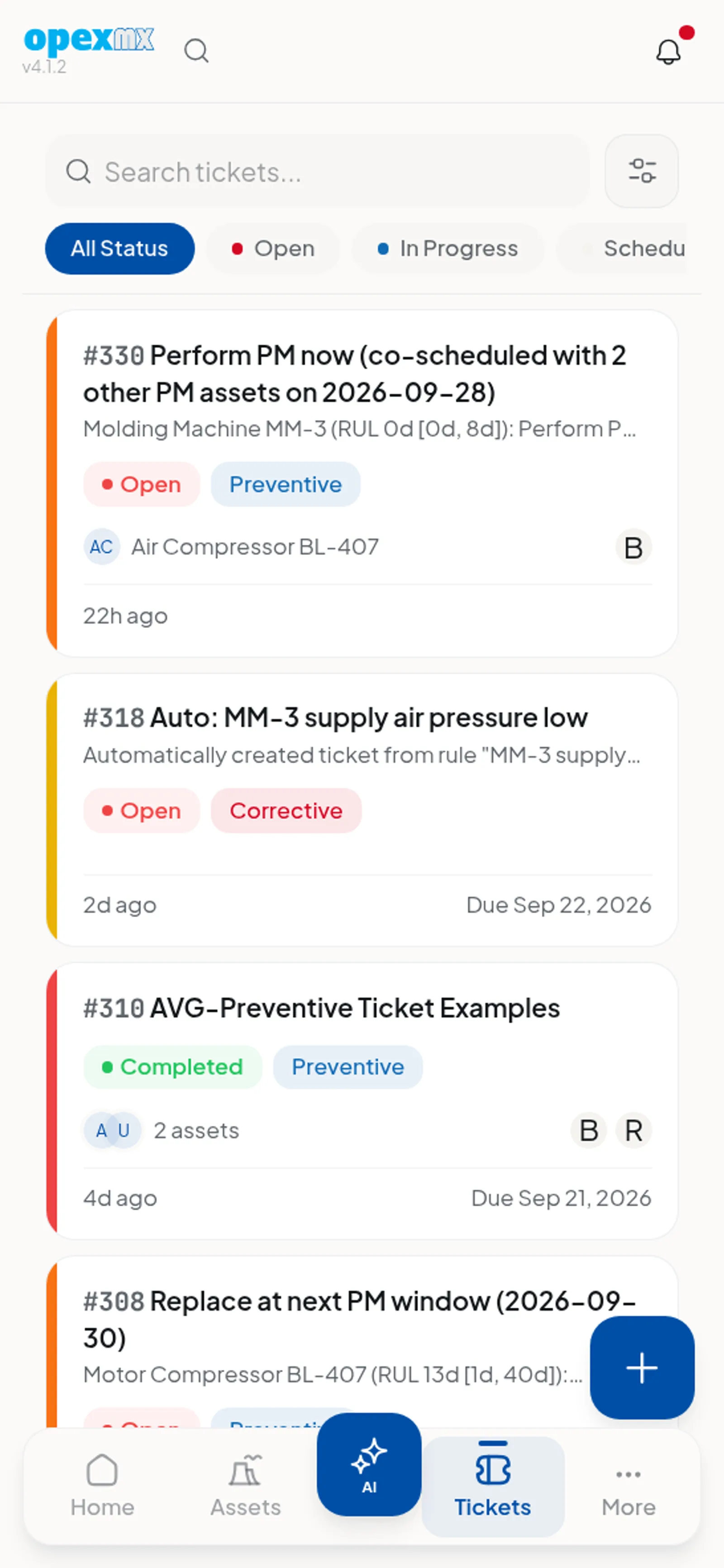
Open your OpexMX address in any phone browser. The layout switches to a bottom bar (Home, Assets, AI, Tickets, More), and More holds the rest of the menu, including a Management sheet. Everything your role can do on desktop works here, including admin, reports and integrations that the Field app does not include. The browser can install it to the home screen.
Use the web app on iPhones, and on shared tablets where installing an APK is not allowed. It has no offline mode.
Getting Started
- Install the app: on the phone, open mx.opexcg.com/download and tap Download APK. Android asks once to allow installs from the browser.
- Connect to your organization: scan the connect QR from Settings → Profile → Mobile app in the web app, type your organization code, or (for on-premise) enter the server address.
- Sign in and take the short tour. It asks for a profile photo, which you can skip.
- Allow notifications when asked, and set battery saver to "No restrictions" so alarms reach you with the app closed.
- Label your assets with QR codes or NFC tags (Me → Register NFC tags) so technicians can scan straight to a machine.
Tips
- Do a test before rollout: assign a corrective ticket to a technician and check that the siren rings with the phone locked and the app closed
- Fill in checklists in dead zones (basements, tank farms) without waiting: answers sync when the phone is back in range, but open the checklist once while you still have signal
- Phones handed between shifts: each person signs in with their own account so labour time, points and answers are attributed correctly
Related
- Ticketing System: the tickets you work on in the Work tab
- Preventive Maintenance: planned PM and checklists in the field
- Email & Push Notifications: what triggers the alerts on the phone
- Docs & Knowledge Center: Me → Manuals & SOPs
- Parts Management: stock, kits and issues in the Stores tab
- Shift Management: rosters and handovers