Watch it in the product
A tour of people in OpexMX: the shift calendar and rosters, a team workload view with shift status, technician qualifications, and training programs.
Find it: Management → Shift Management (Planning group). Shifts, groups and shift patterns are set up under Management → User Management → Users (sub-tabs Shifts, Shift Patterns, Groups); the Configuration tab on the Shift Management page links there. In the OpexMX Field app: Me → My shift.
Sound familiar?
- "Who's working tonight?"
- "I thought the night shift covered that."
- "Which version of the roster spreadsheet is the real one?"
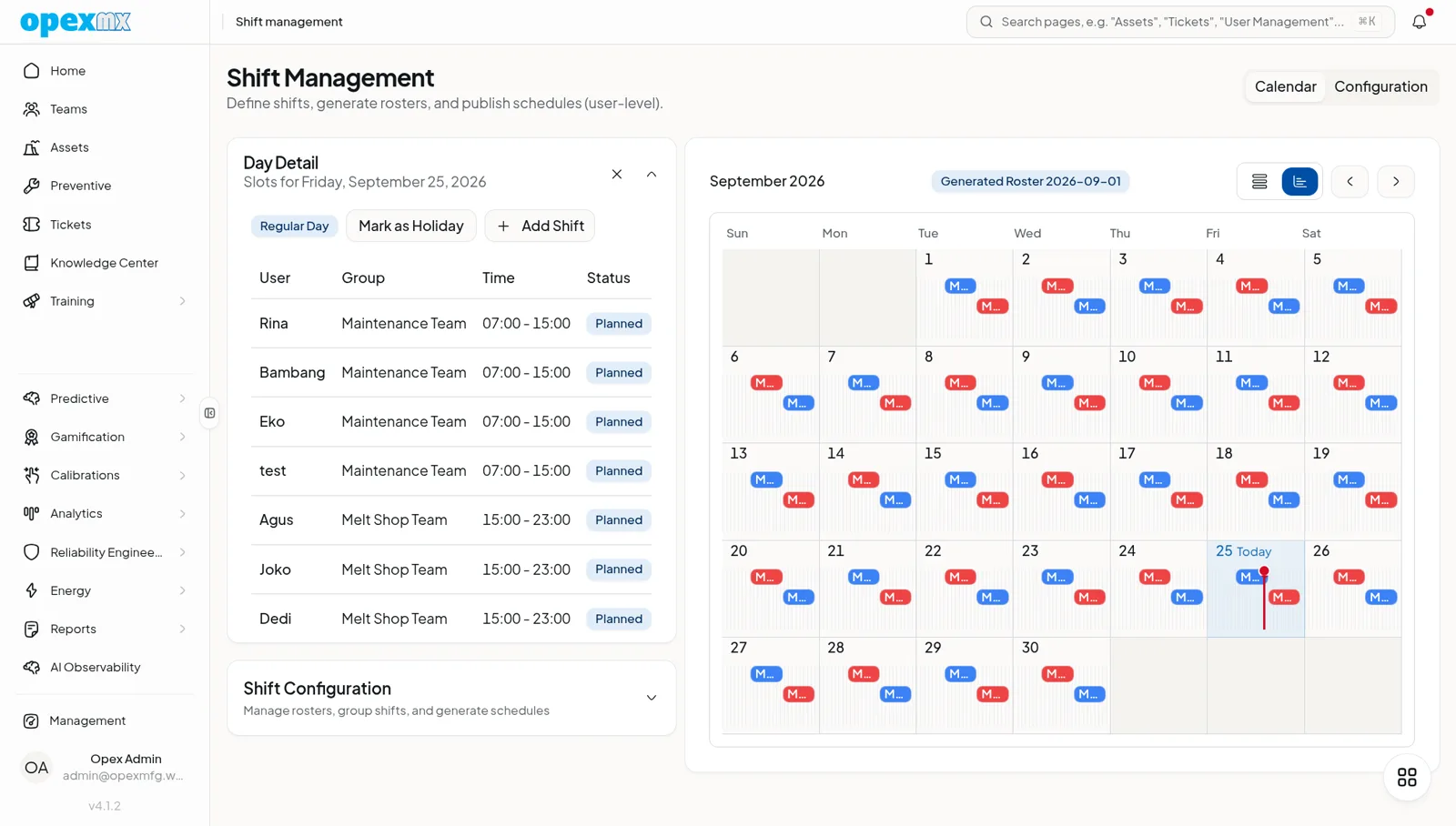
Shift Management turns your crew rotation into a calendar. You define the shifts and which crew works which shift on each day of the cycle; OpexMX generates the roster from that pattern, you adjust individual days, and once published the roster tells the rest of OpexMX who is on shift today.
The Building Blocks
| Term | What it is | Example |
|---|---|---|
| Shift | A named time block with a code, start and end time, break and color | Morning 06:00–14:00, Night 22:00–06:00 |
| Group | A crew of users who rotate together | Crew A, Crew B, Crew C, Crew D |
| Shift pattern | Which shift each group works (or OFF) on each day of a cycle | A 28-day 4-crew rotation for a 3-shift plant |
| Roster | The schedule generated for a date range, either Draft or Published | The roster for the first two weeks of March |
| Slot | One person on one shift on one day | Budi, Night shift, 14 March |
A shift whose end time is earlier than its start time runs past midnight, and the calendar carries it into the next day.
Set Up Shifts, Groups and Patterns
- Shifts (User Management → Users → Shifts): add each shift with its times, break and a color for the calendar.
- Groups (User Management → Users → Groups): create a group per crew and add its members. Group membership can also be set from each user's dialog.
- Shift patterns (User Management → Users → Shift Patterns): pick the groups and shifts, choose daily or weekly rotation and a cycle length of 7 to 365 days, then fill in the grid of which shift each group works per day.
The pattern editor helps you avoid two common mistakes:
- It won't let you give the same shift to two groups on the same day.
- It shows the rest time between consecutive shifts for each group and flags anything under 12 hours, and under 8 hours as insufficient.
Generate and Publish a Roster
On the Calendar tab, open the roster generator:
- Pick the pattern. Without a pattern, the groups simply rotate through the shifts.
- Pick the length (1, 2 or 4 weeks) and the start date.
- Generate. The roster is created as a Draft, with a slot for every member of the group working each day. Days marked OFF in the pattern get no slot.
- Review and adjust in the calendar.
- Publish the roster with Publish Selected.
Generating a new roster replaces any existing draft rosters, so publish the one you want to keep before generating the next period. Published rosters are never touched by generation; to remove one, use Unpublish & Delete.
Day-by-Day Changes
The calendar shows a month at a time in a timeline or list view. Click a day to open Day Detail:
- Add Shift: put an extra person on a shift that day
- Edit a slot: change the shift, reassign it to another person, or mark the day off
- Delete a slot
- Mark as Holiday: highlights the date on the calendar
Holidays are saved in the browser you mark them in and are not shared with other users. They don't change what the generator produces, so adjust holiday staffing by hand in Day Detail.
Where the Roster Shows Up
Only published rosters count as "on shift".
- Teams page: people with a slot today show an On Shift badge.
- User pickers (ticket assignee, checklist, part checkout) list today's on-shift people first.
- OpexMX Field app: My shift shows today's shift, who else is working with you today and the next 7 days.
Shift handover (Field app)
At the end of a shift, a technician taps Hand over my shift and writes a summary (up to 4,000 characters), optional safety notes and up to 30 open tickets they are passing on, either to a named colleague or to whoever comes next. A named recipient gets a notification; the incoming technician sees the handover on My shift and acknowledges it. Past handovers stay available on the same screen.
What It Doesn't Do
- No notification is sent when a roster is published or a slot changes. Tell the team, or point them to the Field app.
- There is no swap request or approval flow; a supervisor reassigns the slot in Day Detail.
- It doesn't check coverage gaps or double bookings across rosters, and it doesn't track hours worked, overtime or attendance.
Who Can Do What
| Permission | Allows |
|---|---|
shift.read | See Shift Management in the menu and My shift in the Field app |
shift.create / shift.update / shift.delete | Manage shift definitions |
shift.pattern.create / shift.pattern.update / shift.pattern.delete | Manage shift patterns |
shift.management.edit | Generate rosters |
shift.management.create / shift.management.update / shift.management.delete | Add, change and delete rosters and slots; publishing needs shift.management.update |
Groups are managed with the group.* permissions. By default only Admins hold the shift permissions. Give technicians shift.read in User Management so they can see their own shifts in the Field app.
Getting Started
- Create your shifts, for example Morning, Afternoon and Night
- Create one group per crew and add the members
- Build the shift pattern that matches your current rotation, and check the rest-time warnings
- Generate two weeks, compare them with the current roster, fix the exceptions in Day Detail, and publish
- Grant
shift.readto the technician role so the crew sees My shift and can hand over in the Field app
Tips
- Keep group membership current: the generator only places people who are in a group when it runs
- Publish before you generate the next period, since a new generation replaces drafts
- Use shift colors that match the boards your plant already uses, so the calendar reads at a glance
Related
- User Management: users, groups and the shift setup tabs
- Mobile Version: My shift and shift handover in the Field app
- Ticketing System: assigning tickets, with on-shift people listed first
- Smart Assignment: workload-based assignee suggestions